Step by step guide
How to count footfall
Count entries and exits using your existing entrance cameras. This guide covers the counting line, stream setup, store totals, the inside now estimate and reports.
In this guide
- 1. Choose and mount the entrance camera
- 2. Add the camera
- 3. Open Footfall and set up the camera
- 4. Draw the counting line
- 5. Set the IN direction
- 6. Optionally use a substream
- 7. Read the status badges
- 8. Read daily and hourly results
- 9. Understand the inside now estimate
- 10. Export the CSV
- 11. Receive a scheduled Footfall report
- 12. Check accuracy at your entrance
- 13. Improve the camera view and line placement
-
1
Choose and mount the entrance camera
Use one camera per entrance. Mount it high above the door, looking down at an angle, with the whole doorway in view. Keep the crossing area well lit so people remain visible in both directions. Assign cameras from the same store to the same location and check its local time zone.
-
2
Add the camera
Follow How to add your camera or NVR in the Help center. Add the entrance camera in Cameras using a reachable RTSP or HLS stream, including a channel from an existing Hikvision NVR. Footfall counting requires a paid plan. Each counting camera also uses one of the camera slots in that plan.
How to add your camera or NVR -
3
Open Footfall and set up the camera
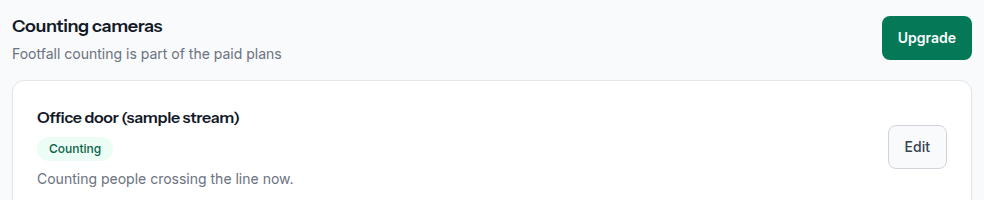
Open Footfall from the sidebar or visit /footfall. Find your entrance camera under Counting cameras and click Set up. The camera picture opens for placing the line.
-
4
Draw the counting line
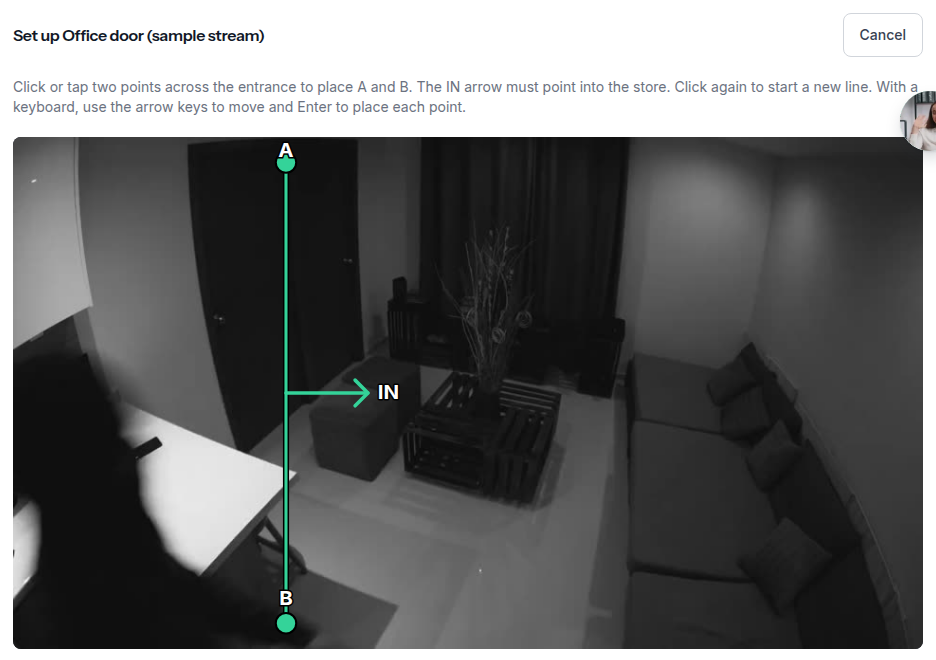
Click two points on the camera picture to draw a line across the whole doorway, a little inside the shop. Choose a place where people walk straight through the line. Avoid places where people wait, turn or walk along the line.
-
5
Set the IN direction
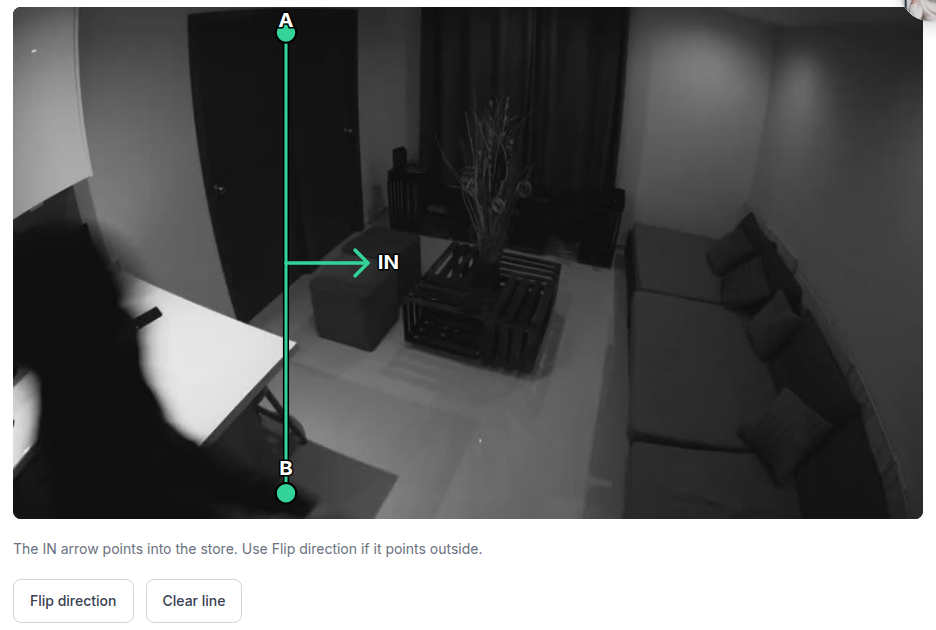
The IN arrow must point into the shop. Click Flip direction if it points outside. Tick Count people on this camera and click Save. A person detector and tracker process about 5 frames per second around the line and count crossings as entries or exits.
-
6
Optionally use a substream
The Substream URL field is optional. Paste a lower resolution stream to reduce bandwidth, for example Hikvision channel 102. Leave it empty to use the camera stream already configured. Save after changing it.

-
7
Read the status badges
Counting means the counter is reading frames and counting crossings, even when nobody is at the door. Starting means the counter is waiting to start, and Connecting means it is opening the stream. Cannot read the stream means the stream could not be read and is retried automatically. Not counting shows a reason such as counting being off, a missing line or stream, an unpaid plan, a camera limit or no available counting slot. Follow the reason shown under the badge.
-
8
Read daily and hourly results
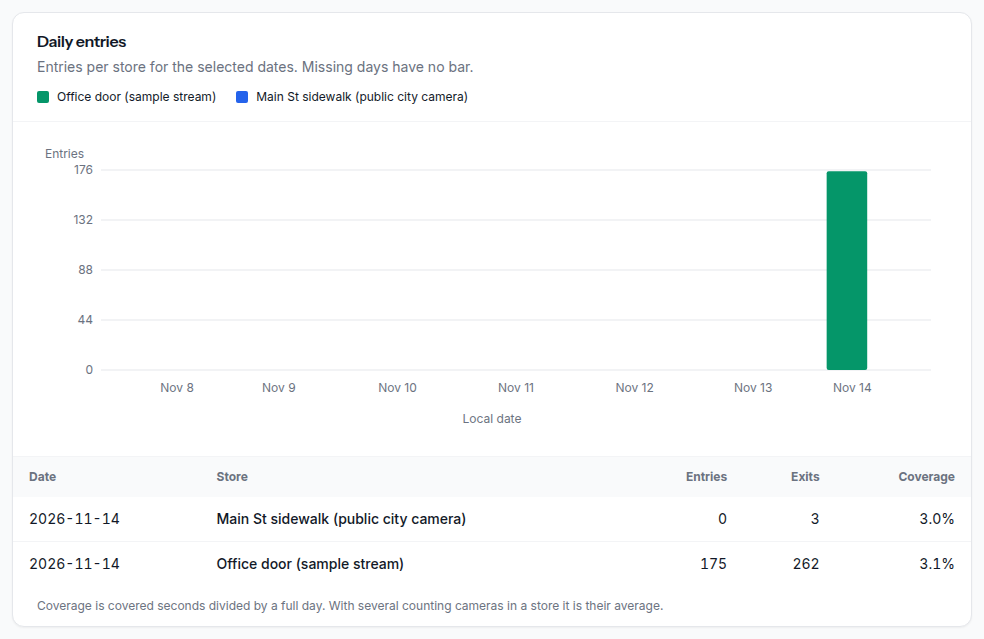
Choose the date range and store. Daily totals group entries and exits by location in the local time of the store. Hourly totals show the selected range by hour of day, combining the selected days. Counts are stored in 15 minute intervals. Check the coverage percent before comparing periods. Coverage describes recorded counting time, not counting accuracy, and gaps in the stream leave incomplete totals.
-
9
Understand the inside now estimate
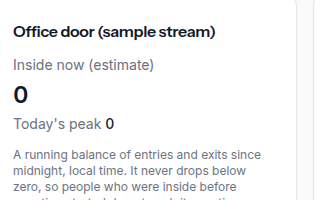
Inside now (estimate) is a running balance of entries and exits recorded since local midnight that never drops below zero, so people who were already inside when counting started do not push it negative. It does not carry people over from the previous day. Uncounted entrances, stream gaps and missed crossings can make it drift. It is not a verified headcount and does not trigger occupancy alerts.
-
10
Export the CSV
Click Download CSV to download hourly entries, exits and coverage by store and camera for the selected date range and store. The export is also available at /footfall/export.csv. It uses the local time of each store.

-
11
Receive a scheduled Footfall report
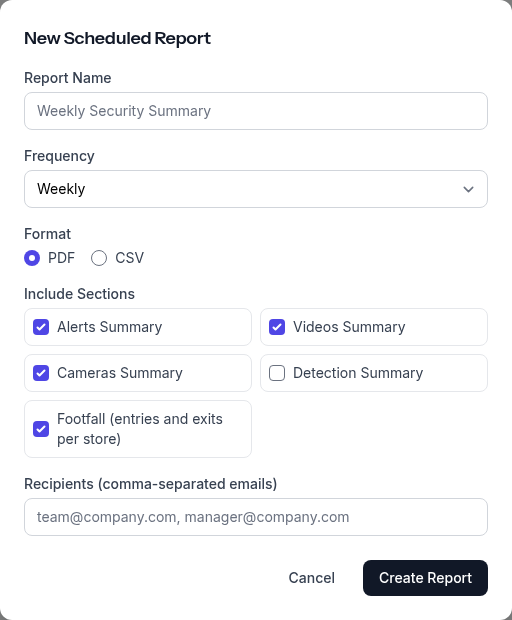
Open Reports and click New Report. Choose daily, weekly or monthly delivery, select the Footfall section and choose PDF or CSV. Add the recipients and save. The Footfall section contains entries and exits per store and daily totals for the report period.
-
12
Check accuracy at your entrance
In our tests on public recordings with hand counted crossings, a camera mounted high above the walkway counted 94 percent of crossings correctly. Crowded scenes filmed at eye level, where people hide each other, reached 65 to 77 percent, so mount the entrance camera high and point it down at the doorway.
-
13
Improve the camera view and line placement
Very crowded doorways where people walk shoulder to shoulder can hide crossings. A camera mounted too low, a line where people stand or walk along it, and poor night light also affect accuracy. Compare manual entry and exit counts with the same recorded period, check coverage, and repeat after adjusting the view or line. Staff crossings are counted too. Footfall does not measure individual dwell time, journeys across cameras, queues, demographics, gender, age, repeat visitors or zone heatmaps.
More guides
How to add your camera or NVR
Connect an IP camera or NVR to Surveillant: RTSP address formats for Hikvision, Dahua, Axis and Reolink, HLS and ONVIF, port forwarding and a connection test.
How to set up monitoring and alerts
Set up 24/7 AI monitoring in Surveillant: alert rules, custom detection prompts, zones and schedules, email, webhook and Slack alerts, and scheduled reports.
How to test Surveillant and read the results
Watch a recorded example analysis, then run Surveillant on your own camera. Learn to read the scene summary, detections, confidence, alerts and video search.
Answers to common questions are in the help center FAQ. Stuck on a step? Email [email protected] with the camera brand and what you see, and we reply with the exact fix.