Step by step guide
How to test Surveillant and read the results
You can judge the detection quality on your own footage before choosing a plan. This guide shows how to run the one-time free demo, how to try sample recordings, and how to read every part of the result.
In this guide
-
1
Run the free demo on the home page
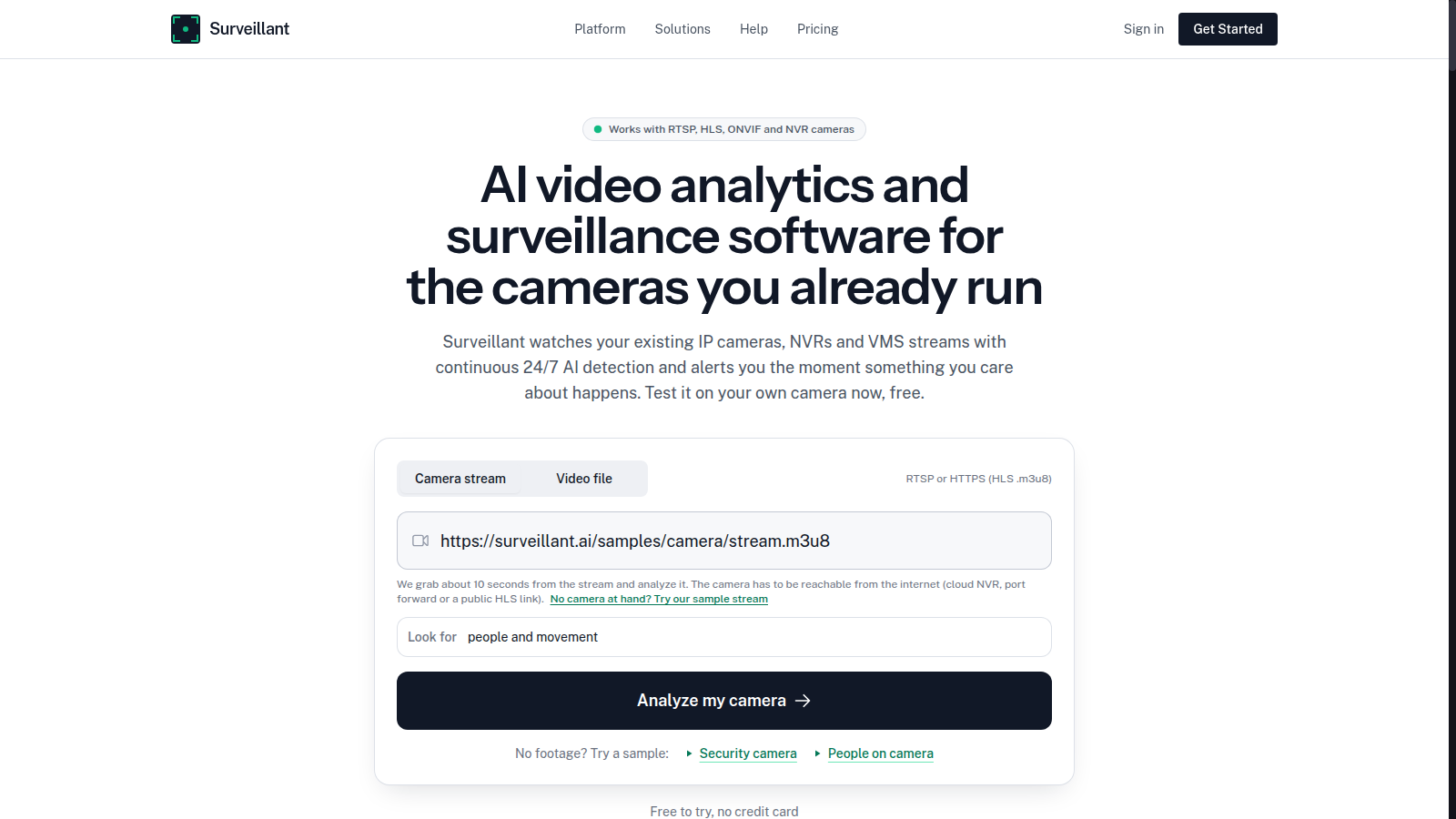
On the home page choose Camera stream and paste a stream address, or choose Video file and upload a clip (MP4, MOV, AVI, WMV, FLV, MKV or WebM, up to 500 MB; the free test analyses up to 5 minutes). In Look for, describe what matters to you, for example "person near the back entrance after 22:00", then press Analyze my camera or Analyze video. No account and no credit card are needed for this one-time analysis. No camera at hand? Click Try our sample stream under the address field, or one of the sample clips below the button.
-
2
Try sample recordings in one click
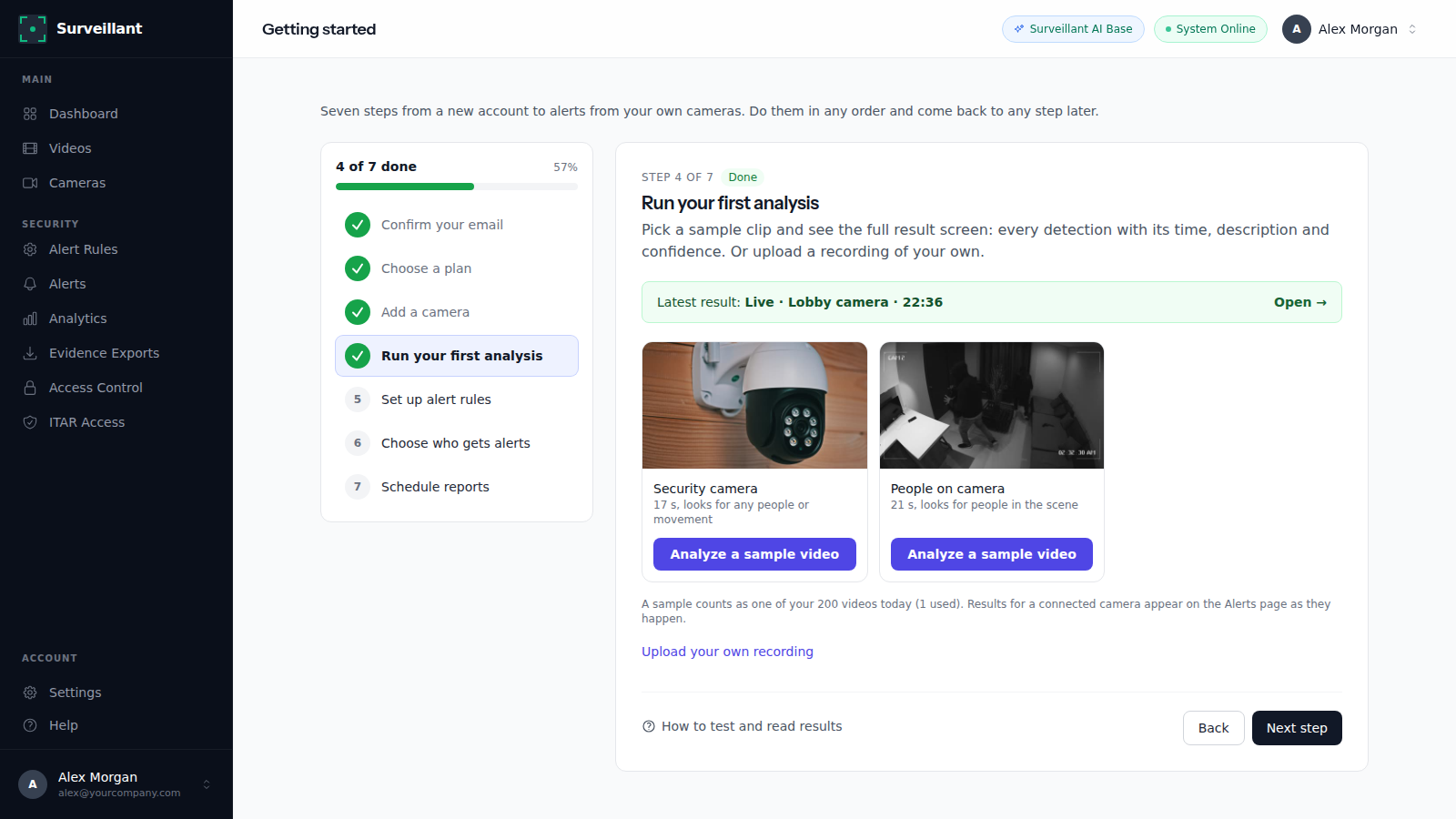
After you create your account, guided setup (Setup) offers sample recordings and a sample camera you can run with one click. They show the full result screen, alerts and search on real footage before you connect your own camera.
-
3
Read the scene summary
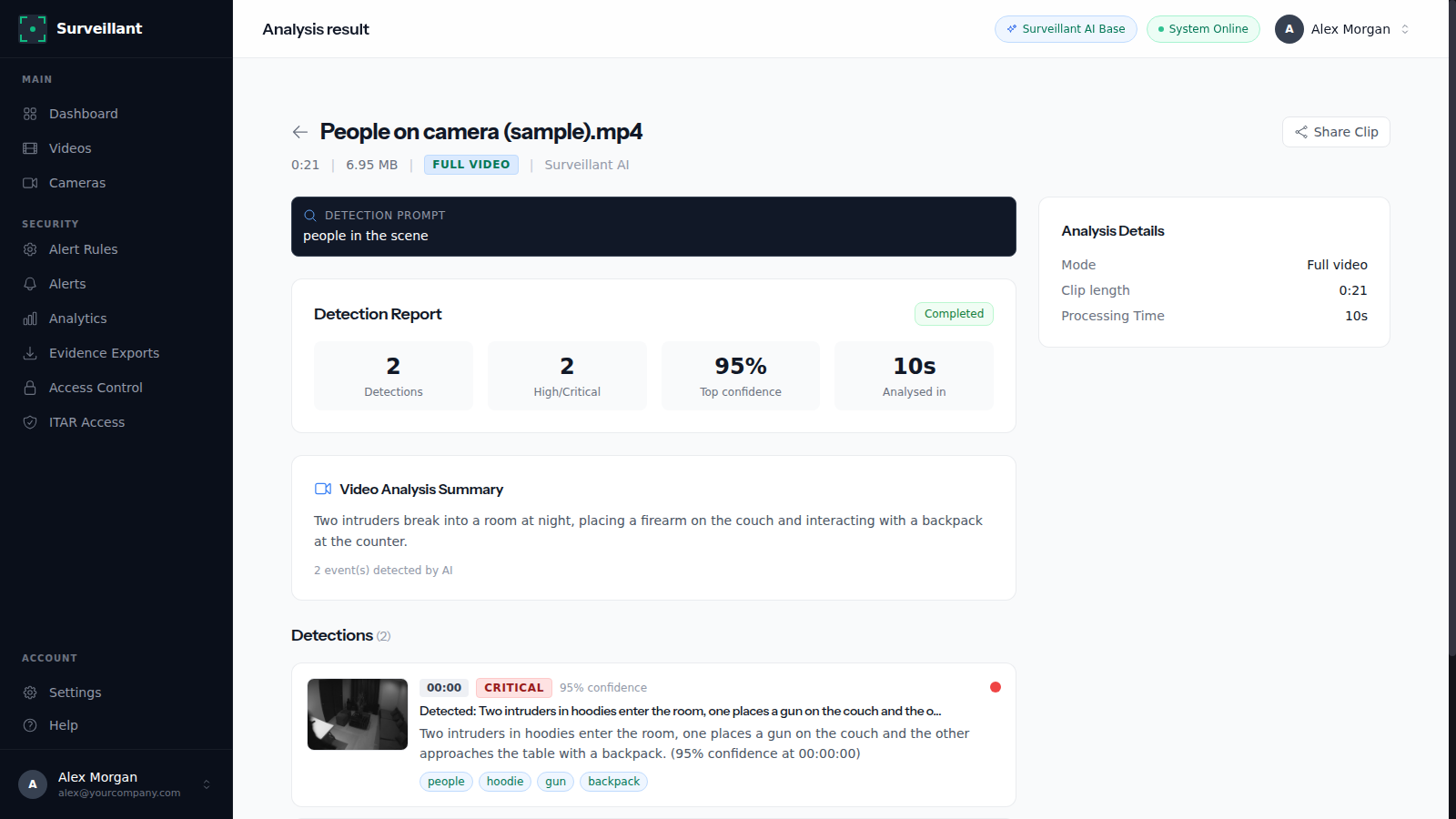
The result opens with the Video Summary: a short description of what happens in the footage, written in plain language, followed by Key Events with their time in the clip. Read it first, it tells you in a few sentences whether anything relevant happened.
-
4
Read each detection: time, severity and confidence
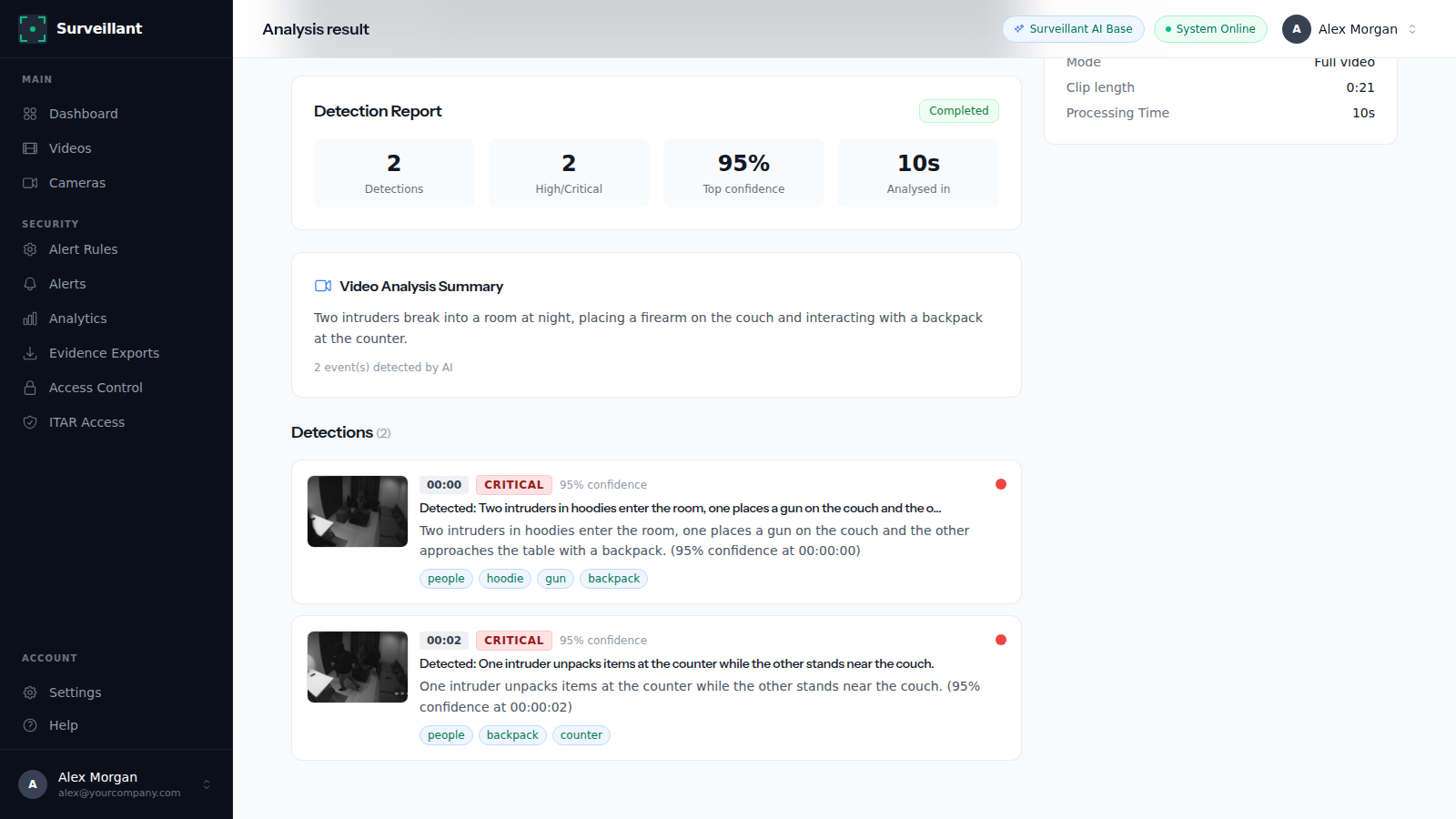
Under Detections every match is listed with a snapshot, the time in the clip (minutes:seconds), a severity badge (low, medium, high or critical) and the confidence in percent. Confidence is how sure the AI is that the frame matches your description; above 80 percent is usually a clear match, lower values are worth a look at the snapshot. Click a frame in Video Frames to see the objects found in it with their own confidence.
-
5
Check the alerts from your cameras
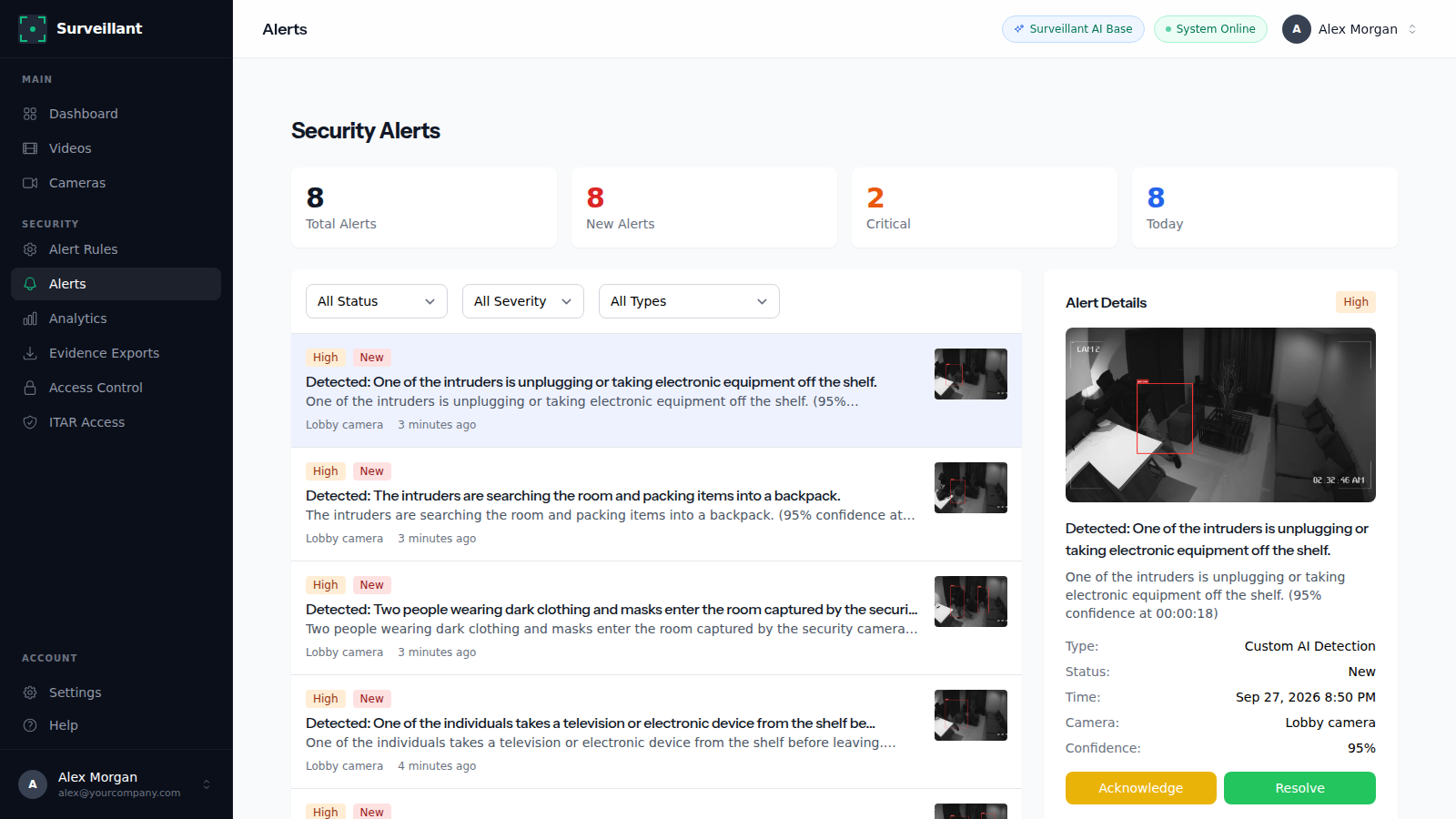
Alerts raised by monitored cameras appear on the Alerts page. Filter by severity, status or type, open an alert for its snapshot and details, and mark it Acknowledged, Resolved or False Positive.
-
6
Search your footage in plain English
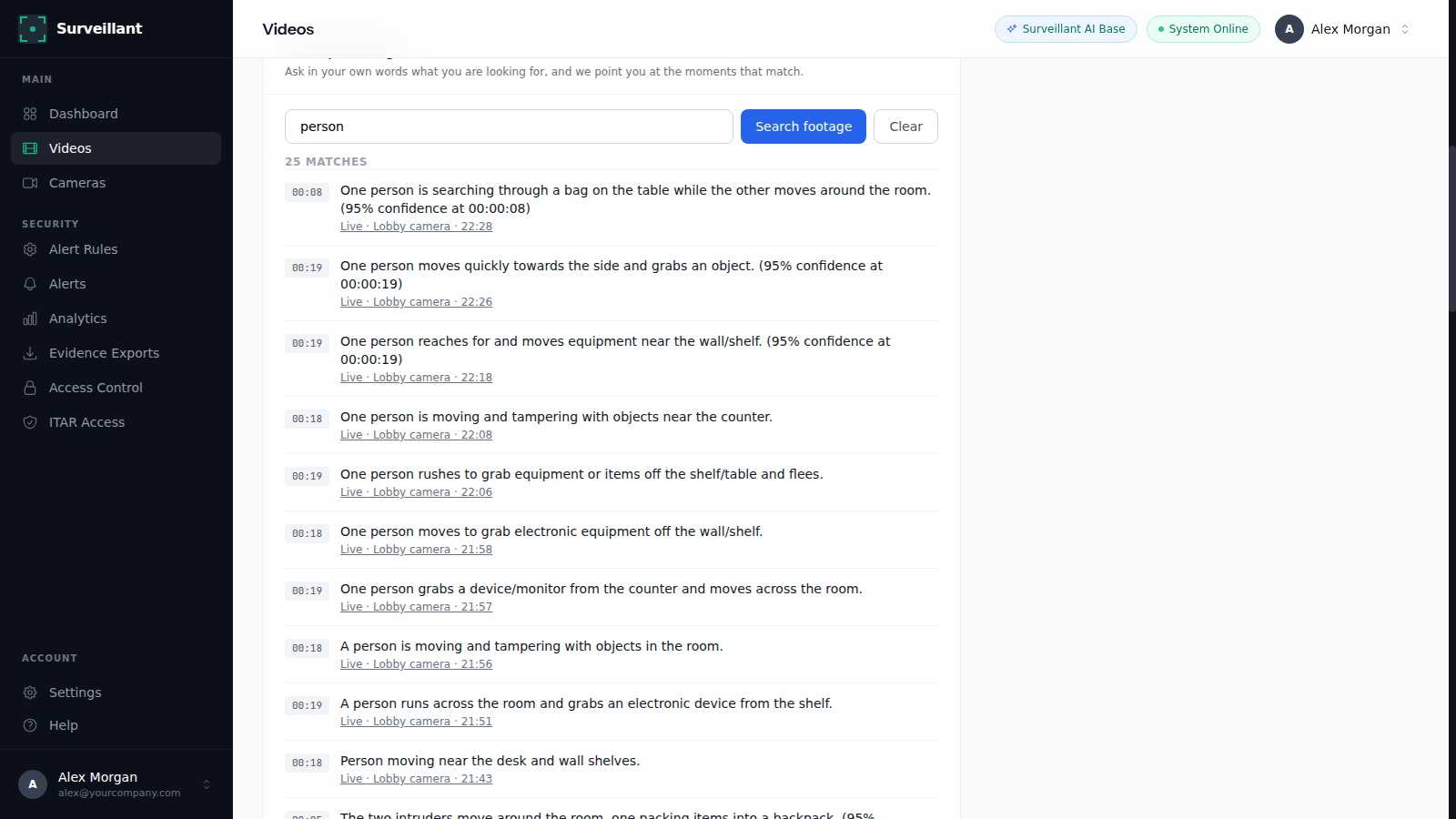
On the Videos page, in Search your footage, type what you are looking for in your own words, for example "person at the back door after dark", and press Search footage. Surveillant points you at the matching moments in your analysed recordings, so you do not have to scrub through hours of video.
-
7
Export evidence
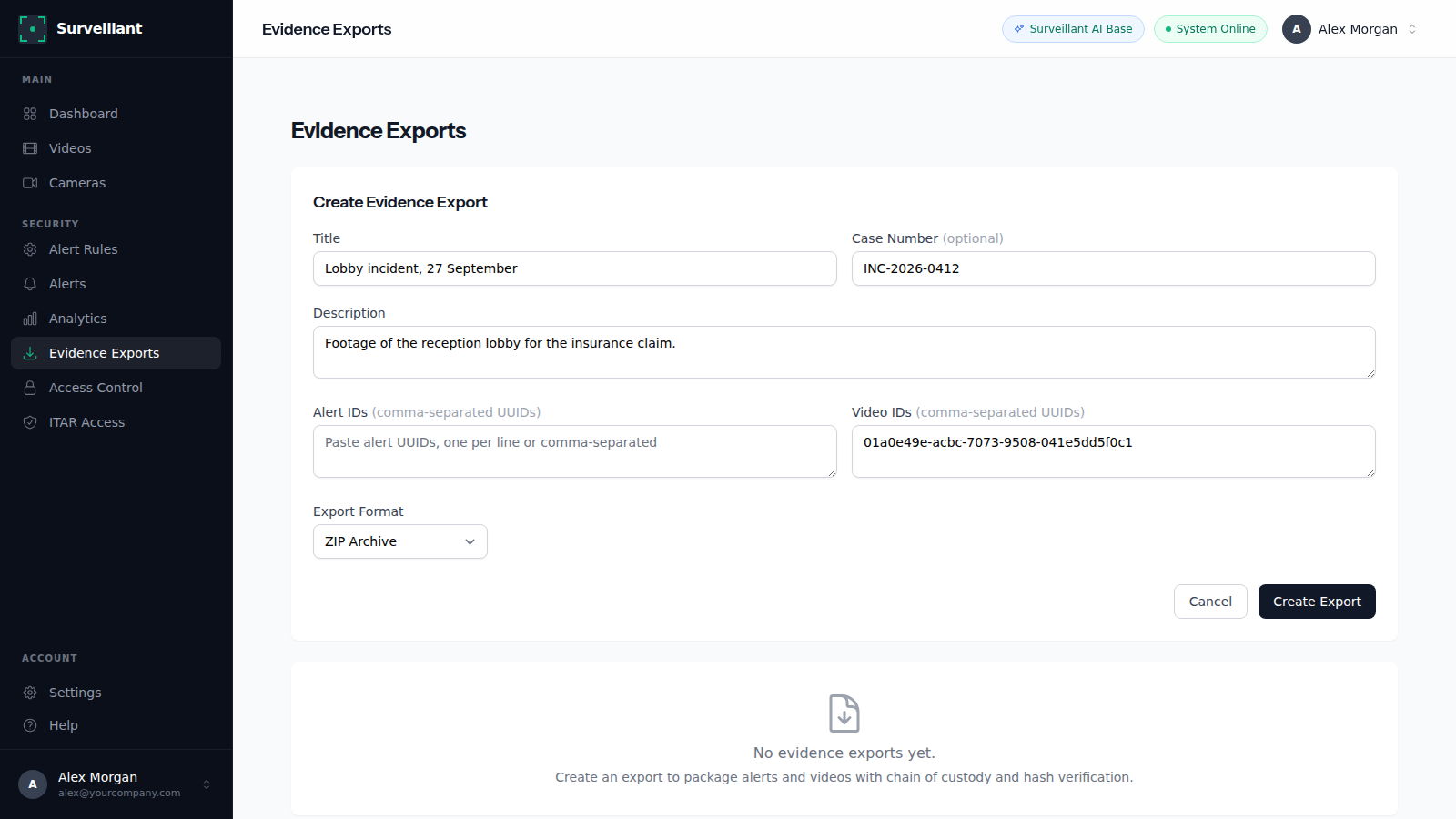
When you need to hand footage to insurance, HR or the police, open Evidence Exports and click Create Evidence Export. Add a title, case number and the videos or alerts to include, and choose ZIP. The export includes a manifest and a SHA-256 checksum, and a chain of custody record is kept for each export.
More guides
How to add your camera or NVR
Connect an IP camera or NVR to Surveillant: RTSP address formats for Hikvision, Dahua, Axis and Reolink, HLS and ONVIF, port forwarding and a connection test.
How to set up monitoring and alerts
Set up 24/7 AI monitoring in Surveillant: alert rules, custom detection prompts, zones and schedules, email, webhook and Slack alerts, and scheduled reports.
Answers to common questions are in the help center FAQ. Stuck on a step? Email [email protected] with the camera brand and what you see, and we reply with the exact fix.