Step by step guide
How to set up monitoring and alerts
Once a camera is connected, Surveillant watches it continuously and raises an alert when something matches your rules. This guide shows how monitoring works, how to create alert rules, who gets notified and how to receive regular reports.
In this guide
- 1. Know what monitoring does
- 2. Start from a ready template in guided setup
- 3. Create an alert rule
- 4. Describe your own detection in plain English (Pro and Elite)
- 5. Limit a rule to an area and to active hours (Elite)
- 6. Choose who gets the alert
- 7. Receive daily, weekly or monthly reports
- 8. Handle alerts as they come in
-
1
Know what monitoring does
Every camera within your plan is monitored 24/7. Surveillant takes a short clip from the stream every minute and analyses it with AI, so an event is detected within about a minute of happening. There is nothing to start or keep open in the browser. The number of monitored cameras depends on the plan: Starter 1, Plus 2, Pro 6, Elite 20.
-
2
Start from a ready template in guided setup
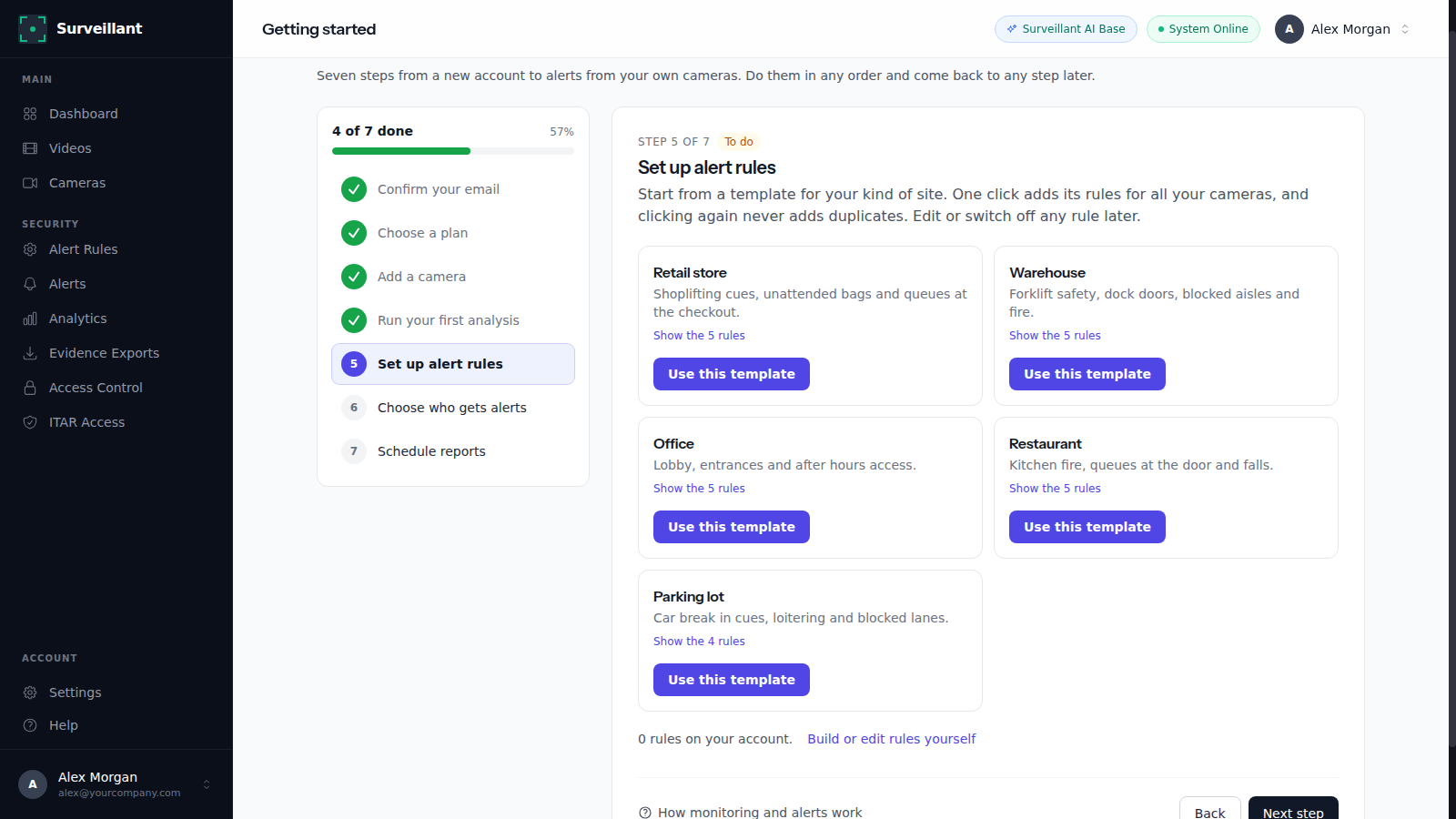
Open Getting started from the dashboard (Continue setup). Step 5, Set up alert rules, offers ready-made templates for a retail store, warehouse, office, restaurant and parking lot. Use this template adds its rules for all your cameras in one click, and clicking again never adds duplicates. Steps 6 and 7 choose who gets alerts and schedule an email report. Every choice can be changed later on the Alert Rules page.
-
3
Create an alert rule
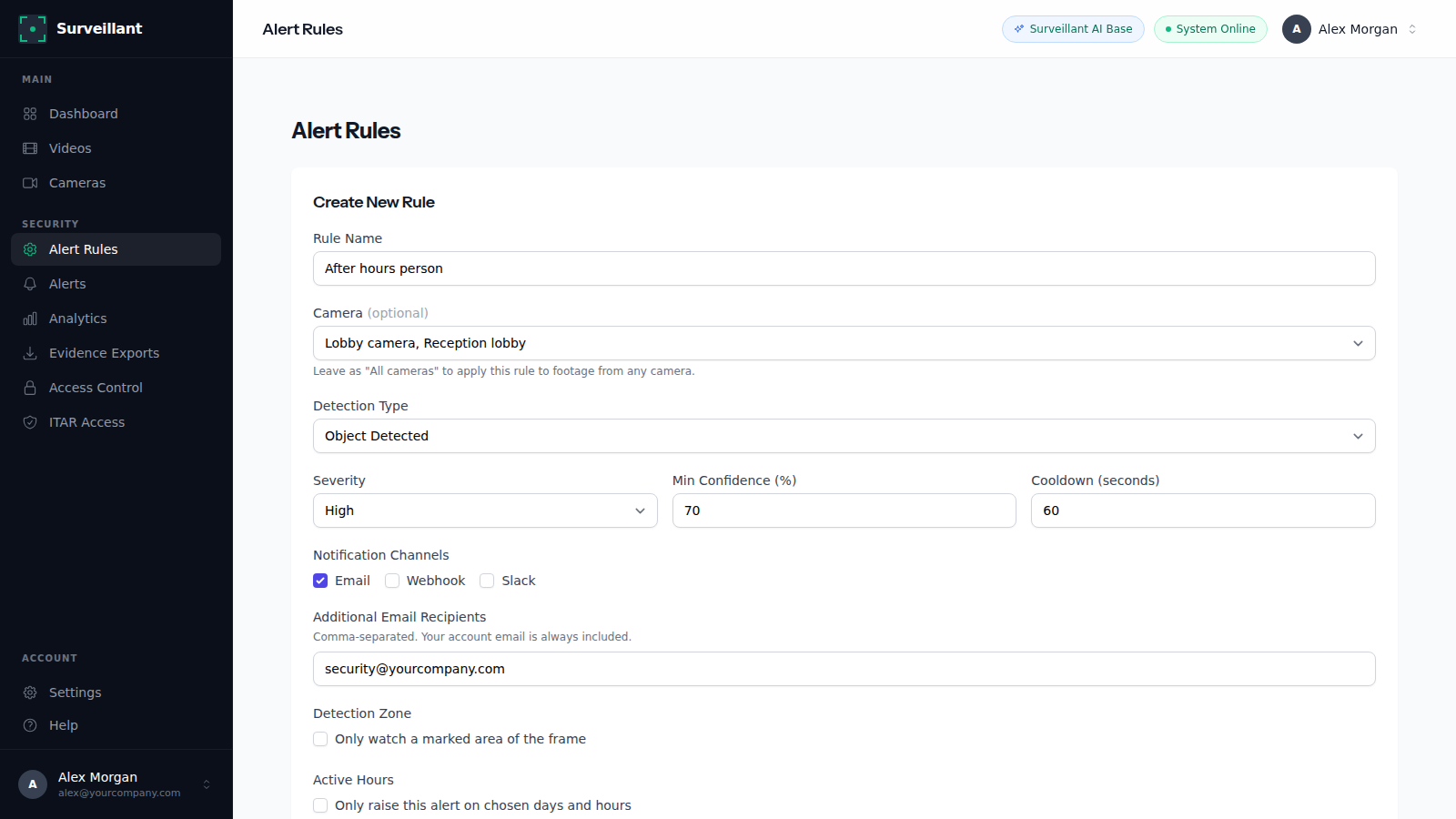
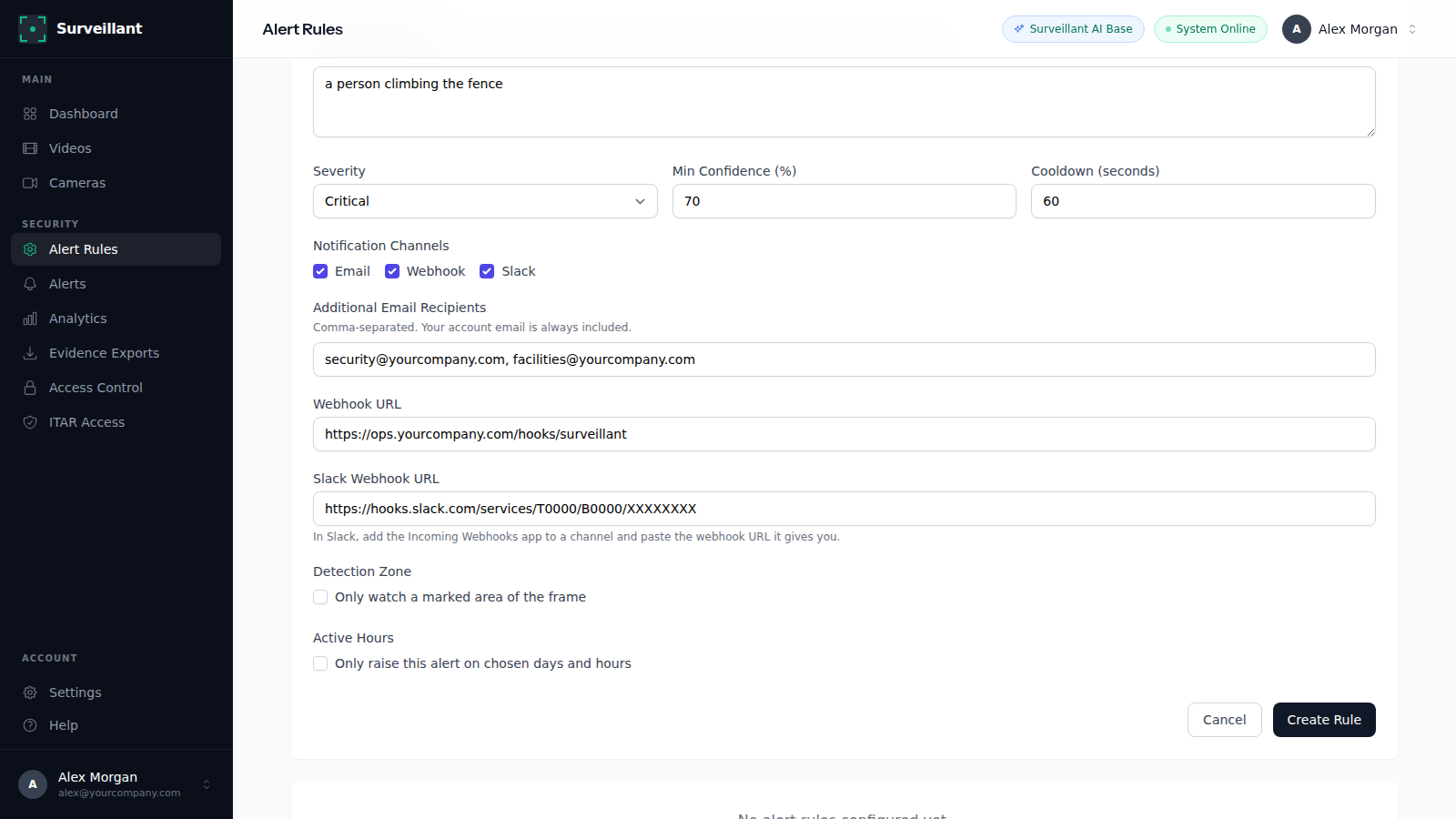
Open Alert Rules and click New Rule. Name the rule, pick one camera or All cameras, and choose the detection type: Object Detected, Loitering, Abandoned Object, Crowd Anomaly, Face Detected, Intrusion or Custom AI Detection. Set the severity (Low, Medium, High, Critical), the minimum confidence in percent, and a cooldown in seconds so one ongoing event does not send a message every minute.
-
4
Describe your own detection in plain English (Pro and Elite)
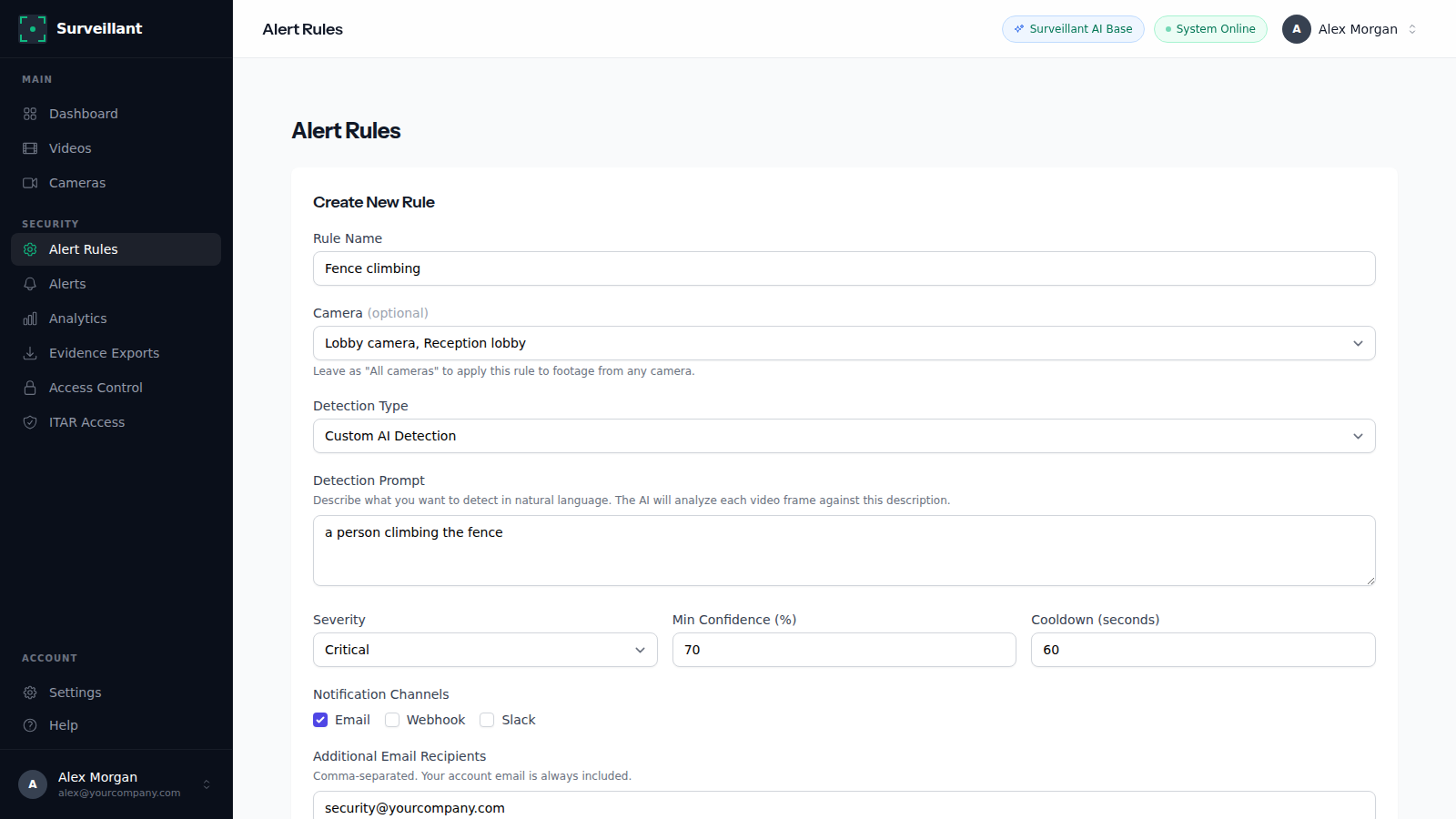
Choose Custom AI Detection and write what should raise the alert, for example "a person climbing the fence" or "a forklift in the pedestrian lane". Be specific about the object and the situation. This detection type is included from the Pro plan.
-
5
Limit a rule to an area and to active hours (Elite)
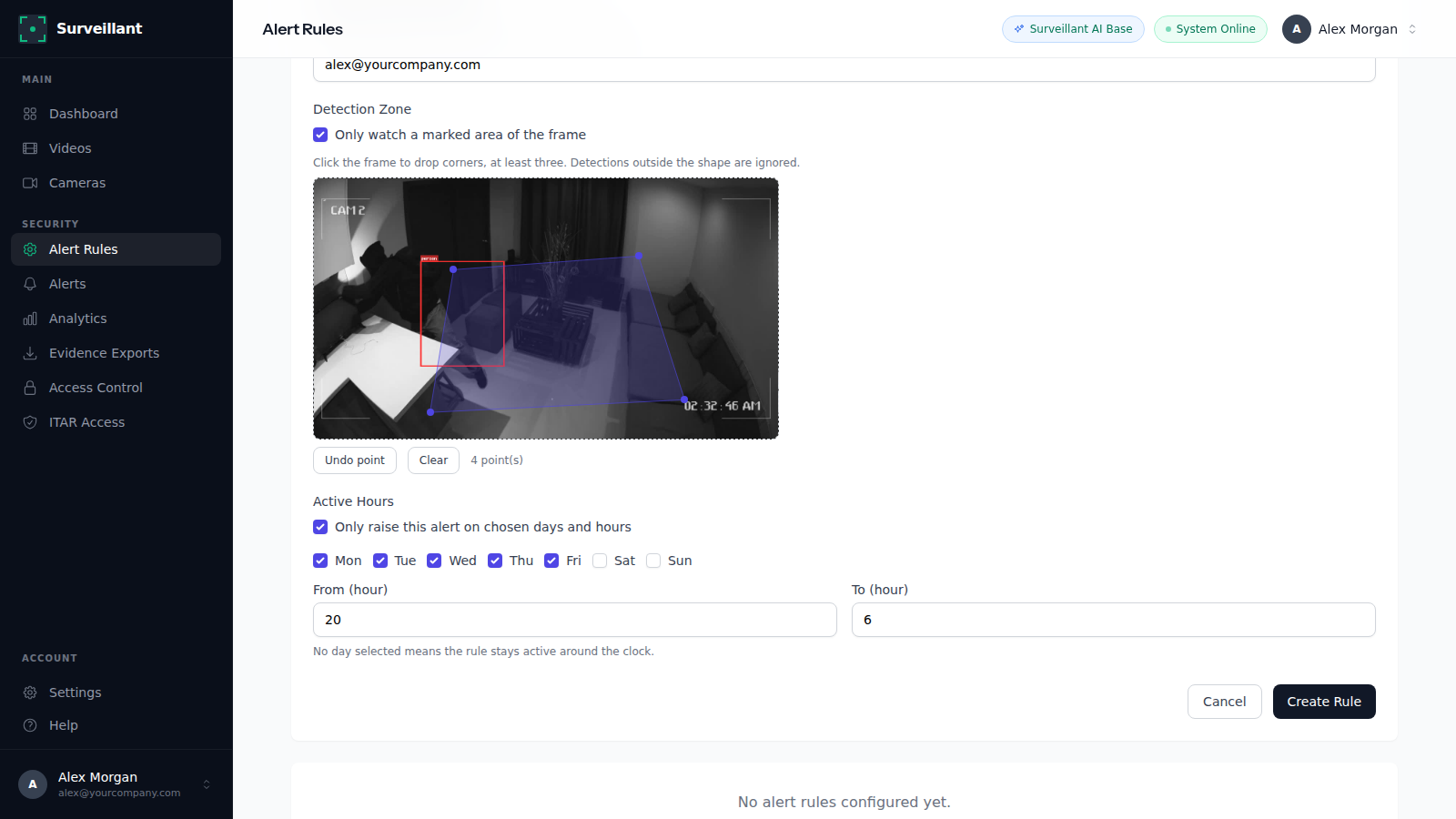
Under Detection Zone tick Only watch a marked area of the frame and click at least three points on the camera image to draw the area. The Intrusion type needs a zone, because it answers whether someone entered that area. Under Active Hours pick the days and the hours when the rule should fire, for example weekdays from 20 to 6. With no day selected the rule stays active around the clock. Zones and schedules are included on the Elite plan.
-
6
Choose who gets the alert
Under Notification Channels, Email is included on every plan: each alert email carries a snapshot of the moment, the camera, the severity and the confidence. Recipients default to your account email; add more addresses separated by commas. From the Pro plan you can also tick Webhook (paste your endpoint URL, Surveillant posts the alert as JSON) and Slack (paste the incoming webhook URL of your Slack channel).
-
7
Receive daily, weekly or monthly reports
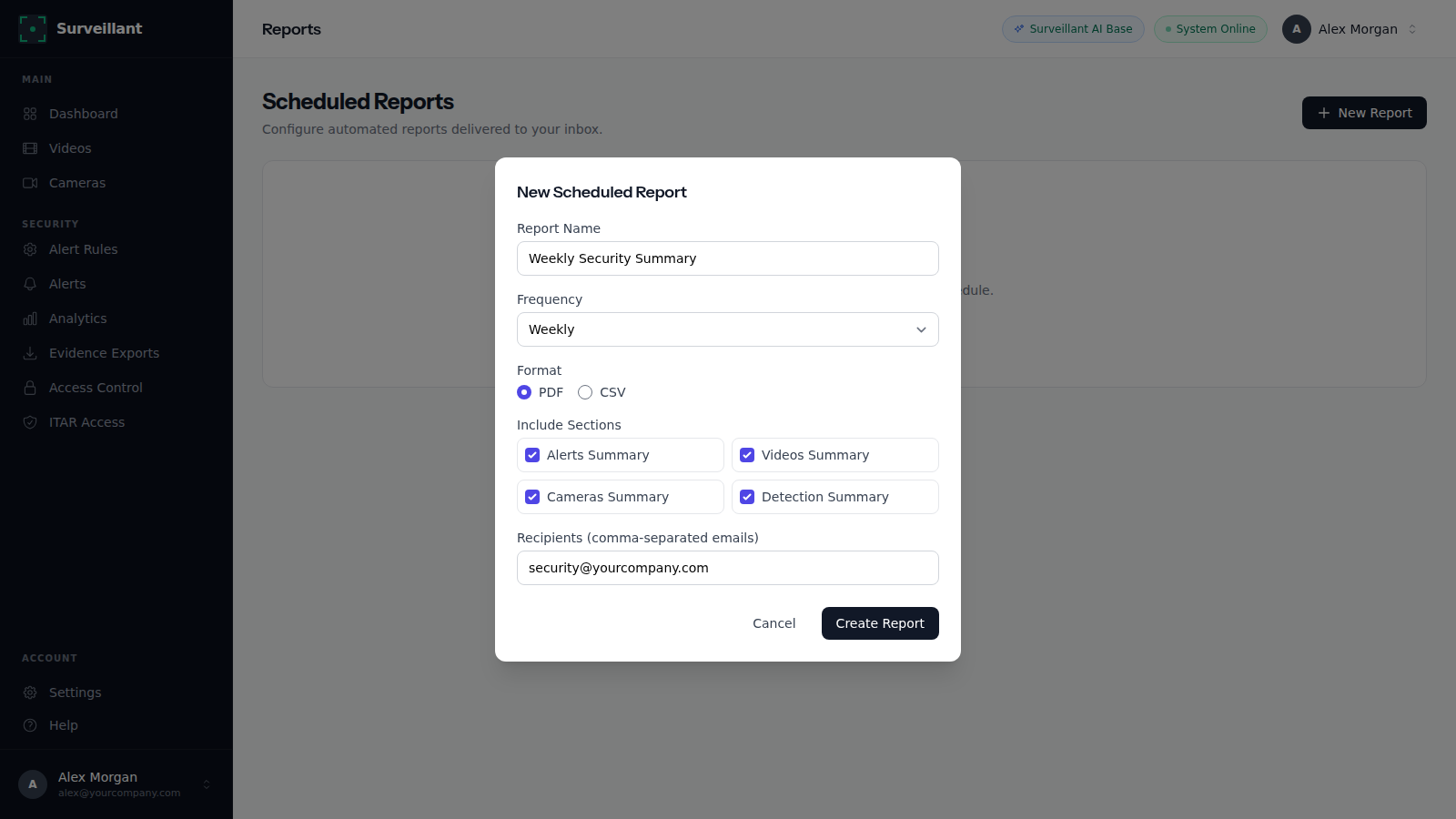
Open Reports and click New Report. Pick the frequency (daily, weekly or monthly), the sections to include and the recipients, separated by commas. The report arrives by email as an attached file with the counts of what your cameras saw and every alert raised in the period. Report History on the same page lists past runs.
-
8
Handle alerts as they come in
Every alert is listed on the Alerts page with its camera, time, severity and status. Open an alert to see the snapshot and details, then mark it Acknowledged, Resolved or False Positive. Marking false positives regularly is the quickest way to see which rule needs a higher minimum confidence or a smaller zone.
More guides
How to add your camera or NVR
Connect an IP camera or NVR to Surveillant: RTSP address formats for Hikvision, Dahua, Axis and Reolink, HLS and ONVIF, port forwarding and a connection test.
How to test Surveillant and read the results
Test Surveillant on your own video or camera stream in minutes, no card. Learn to read the scene summary, detections, confidence, alerts and video search.
Answers to common questions are in the help center FAQ. Stuck on a step? Email [email protected] with the camera brand and what you see, and we reply with the exact fix.